
Galaxy Widgets: One UI
AppsLab Co.Personalization
4.428.00 Reviews
- Version
- 1.1
- Installs
- 10.00K
- Age Rating
- Everyone
Screenshots
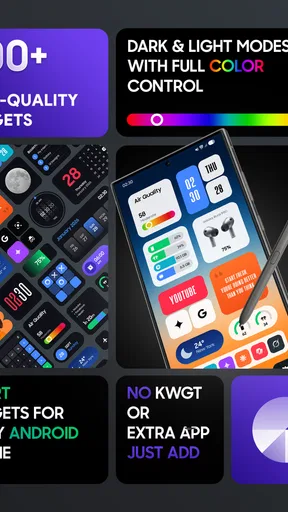
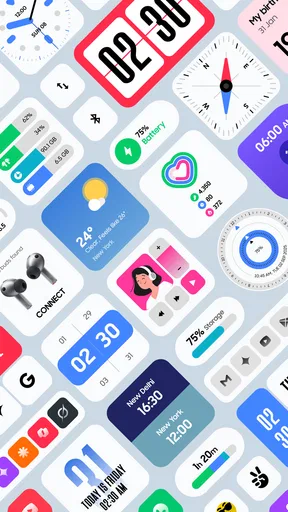
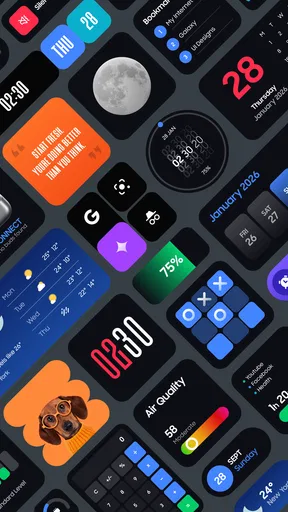
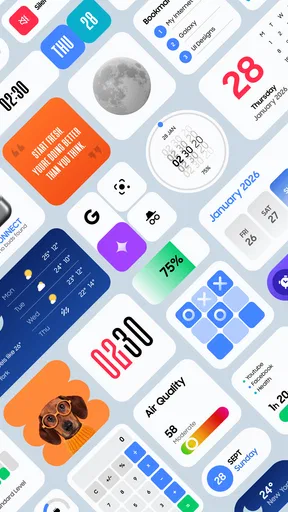
Our Review of Galaxy Widgets: One UI
 Analysis by Appyee
I treat a widget app as something that earns space on my home screen, not just another place to browse pretty designs. Its value depends on whether the finished screen is easier to read and more pleasant to use after the novelty wears off. Galaxy Widgets: One UI is a personalization app from AppsLab Co. built around giving a phone a more coordinated, Samsung-inspired look. I’d consider it if the standard widgets feel too plain, but I’d also approach its choices practically: visual polish matters, yet a widget should still fit the way I use my phone.
What I’d check before making it part of my routine
There’s a meaningful difference between choosing a style and changing how a phone behaves. A widget can occupy valuable home-screen space, and adding several decorative panels may make useful shortcuts harder to find. My advice is to decide what you actually want to see at a glance—perhaps the date, a calendar item, or battery status—before spending time browsing designs. That gives the customization a purpose rather than turning the home screen into a collection of attractive but redundant boxes.
I also wouldn’t assume that a polished appearance tells me anything about an app’s privacy practices. When installing any personalization tool, I check the permission prompts shown on my own device and consider whether each request makes sense for what I’m trying to do. I review the choices presented during setup instead of accepting them automatically. That’s a useful habit here, particularly because a widget’s appearance alone can’t tell me what information the app accesses or how it handles it.
The app has an Everyone content rating, and it costs $0.49 to download, with optional in-app purchases listed from $1.49 to $9.49 per item. I’d factor both parts into the decision: the initial price is modest, but optional purchases can change the total if a particular design or customization is only available separately. The rating is helpful context for suitability, but I wouldn’t treat it as a substitute for checking permissions or reading the choices displayed on the device.
Small choices that make the screen more useful
One practical way to test a widget is to place just one on the home screen first, then use the phone normally for a day. I’d check whether its size leaves room for the icons I reach for most, whether its text is readable against my wallpaper, and whether I actually glance at it. If it doesn’t earn its space, I’d remove it rather than redesigning the whole screen around it. This quick trial helps separate a genuinely useful addition from a style I only enjoy while setting it up.
There’s also a trade-off between matching a theme and keeping information clear. Lower opacity or a busy wallpaper can make a widget feel integrated, but the combination may reduce legibility. I’d prioritize contrast for anything I need to read quickly, then adjust the surrounding look to suit it. For a home screen used in bright daylight or checked while moving, readability matters more than a perfectly seamless palette.
My cautious verdict is that this app makes sense for someone who wants to refine a Galaxy-style home screen and is comfortable making those visual choices deliberately. I’d skip it if I’m satisfied with the built-in widgets, dislike paying for personalization, or want detailed assurances about data handling before installing anything. I’d check the app’s visible permission prompts and purchase options for myself, then keep only the widgets that make the screen more useful. That’s a more reliable test than judging the app by a screenshot.
What Makes Galaxy Widgets: One UI Stand Out?
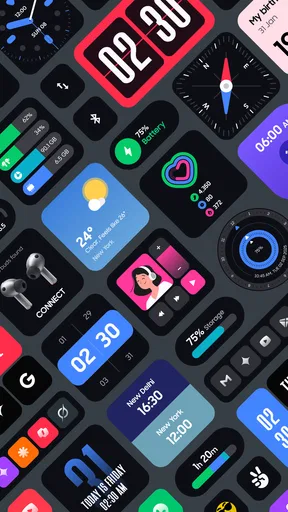
First off, let’s talk about the sheer variety of widgets it offers. From weather updates to calendar events, and even those nifty little battery status icons, Galaxy Widgets: One UI has it all. I was blown away by the customization options. You can tweak colors, adjust sizes, and even choose the opacity. It’s all about making it yours, and honestly, who doesn’t love a bit of personalization?
The app’s pitch is a broad selection of One UI–inspired looks: it offers more than 500 widget designs for a home screen. In practice, a large catalogue is most useful when I have a clear aim. I’d first choose a role for the widget—quick visual reference, a calmer layout, or a way to make a frequently checked detail more prominent—then compare designs that suit that role. Browsing without a plan can be enjoyable, but it can also turn a simple setup into a long session of trying options that don’t improve the screen.
Now, I know what you’re thinking. “Can’t I just find widgets on my phone already?” Sure, but let’s face it, they often lack that personal touch. What’s great about this app is that it feels like it’s been built with the user in mind. It’s intuitive and, dare I say, quite fun to use.
The usual alternatives are the widgets already included with a phone, which are convenient and require no separate purchase, and other customization apps, which may suit people who want a different visual style. The built-in option is better if familiarity and a simple setup matter more than a coordinated appearance. This app is the more interesting choice when I specifically want One UI–style designs and enjoy tuning the home screen. Neither route is automatically better: the right one depends on whether I value convenience or a more tailored look.
Installing and Setting Up
Getting started is a breeze. You simply download it from the app store, and off you go. The setup process is straightforward. Even if you’re not the most tech-savvy person out there, you’ll have no trouble getting your widgets up and running. The app guides you through each step, almost like having a friendly tech guru by your side.
It’s currently version 1.1, and it was released on January 30, 2026. It requires Android 12 or later, so I’d check the operating system on the device I plan to use before paying for it. The release date and version are useful context, but they don’t tell me how a particular phone will display every widget. I’d still make my first setup a small test rather than rebuilding several home-screen pages at once.
Once installed, I was greeted with a clean and modern interface. It’s not cluttered with unnecessary features, which I appreciate. Sometimes less is more, right? Navigating through the options felt natural, and I didn’t find myself lost in a sea of settings.
For a real everyday test, I’d try a calendar-style widget on the page I already check when planning the day. In the morning, I could see whether the layout makes the next appointment easier to notice without opening another app; later, I’d see whether the widget still looks clear beside the icons I actually use. If the screen becomes crowded, I’d remove a less useful panel rather than shrinking everything until it is hard to read. This is a simple way to judge both appearance and practical fit.
Customization Galore
This is where the magic happens. I spent way more time than I’d like to admit playing around with the customization options. From selecting themes to adjusting the transparency, it’s all incredibly satisfying. You can even mix and match styles to create something truly unique. I ended up with a sleek, minimalist look that blends perfectly with my current wallpaper.
One tip I’d use when experimenting is to change one visual element at a time. If I switch the theme, opacity, and size together, it’s harder to tell which change made the result better—or less readable. I’d settle the widget’s function and placement first, then adjust its appearance while checking it against the wallpaper and nearby icons. That small bit of discipline keeps customization from becoming an endless loop of tweaks.
For those of you who love to keep your phone’s aesthetic fresh, Galaxy Widgets: One UI is a game changer. You can change your widget styles as often as you change your socks, and it never gets old.
That freedom is most appealing to people who enjoy refreshing their phone’s look, but it isn’t a reason to keep every design in use. I’d choose a consistent visual direction for the main screen and save more experimental combinations for a secondary page. That way, the page I rely on stays familiar, while I still have room to try a bolder style without making everyday navigation less predictable.
Performance and Usability
Let’s talk performance. No one wants an app that slows down their phone, right? Thankfully, this app runs smoothly without a hitch. It’s lightweight, so it doesn’t hog your phone’s resources, which is always a win in my book.
Usability is another key factor. The app is designed to be user-friendly, and it shows. Navigating between different widgets and settings feels seamless. I didn’t experience any crashes or lag, which is a testament to the app’s solid design.
Widget usability also depends on the home screen around it. Before adding several panels, I’d think about the thumb movements and taps I use most often: a decorative widget should not push a frequently used app into an awkward spot. I’d keep the most important shortcuts easy to reach and use the widget space for information I want to glance at rather than actions I need to perform repeatedly. This is a small layout decision, but it can matter more than choosing between two similar styles.
Any Downsides?
Now, it wouldn’t be a fair review without mentioning a couple of downsides. While the app is fantastic, it does have a few limitations. For instance, some themes and customization options are locked behind a paywall. It’s a bit of a bummer, but if you’re looking for a free option, the basic features are still pretty impressive.
Since the app itself is paid and offers additional in-app purchases, I’d decide on a spending boundary before getting attached to a particular look. I’d explore what is available, identify whether the included options already meet my needs, and only consider an extra purchase if it solves a specific design problem. If I’m simply curious, I’d stick with what I have rather than treating every locked option as necessary.
Another thing I noticed is that it’s primarily geared towards Galaxy devices. If you’re using a different brand, you might not get the full experience, which is something to keep in mind.
That makes device fit an important part of the decision. If I’m using a Galaxy phone and want its home screen to feel more cohesive, the app’s visual direction is a natural match. If I use another brand, I’d be more cautious: I’d weigh the appeal of the designs against the chance that the experience won’t feel as tailored. Someone who mainly wants dependable, familiar widgets may be better served by the options already built into their phone.
For trust, I’d keep my expectations grounded. The developer is AppsLab Co., and the app has an average rating of 4.4 from 470 ratings, alongside 28 written reviews and more than 10,000 installs. Those figures offer a little context about its audience, not a guarantee about privacy, compatibility, or future performance. I’d still make my own decision based on the permission prompts, the visible purchase choices, and how the app behaves on my device.
Final Thoughts
All in all, Galaxy Widgets: One UI is a fantastic app for anyone looking to add a touch of personalization to their device. It’s user-friendly, visually appealing, and packed with features that cater to both beginners and tech enthusiasts alike. Whether you’re a customization junkie or just looking to spruce up your home screen, this app is definitely worth checking out.
I’d recommend it most to someone who enjoys shaping a Galaxy-style screen and is happy to spend a little time testing layouts. I wouldn’t choose it just because a large library sounds impressive: the strongest result comes from selecting a few widgets that genuinely help, then checking that they remain readable and convenient in ordinary use. If I want a no-cost, no-fuss solution or need stronger privacy assurances before installing, I’d pause and compare the built-in alternatives instead.
If you’re ready to dive into the world of widgets and make your phone truly yours, you can find Galaxy Widgets: One UI in the app store. Give it a whirl and let your creativity run wild!
Verdict
Strengths of Galaxy Widgets: One UI
- Highly customizable widget options.
- Seamless integration with Samsung devices.
- Regular updates improve functionality.
- User-friendly interface for easy setup.
- Supports a wide range of widgets.
Limitations of Galaxy Widgets: One UI
- Limited compatibility with non-Samsung phones.
- Some widgets require premium features.
- Occasional bugs in widget display.
- Can be resource-intensive on older devices.
- Limited third-party app support.
Other Releases by AppsLab Co.
View All
DepthX - Live Clock Wallpapers
Personalization4.1

NewThing Widgets Pro
Personalization4.5

Glass Widgets
Personalization4.5

DarkGlass Widgets
Personalization4.6
Similar Picks in This Category
View All
Microsoft SwiftKey AI Keyboard
SwiftKey4.3

Wallpapers
Google LLC4.1

Zedge™ Wallpapers & Ringtones
Zedge4.7

Yandex Browser with Alice AI
Direct Cursus Computer Systems Trading LLC4.3

Ringtone Maker:create ringtone
Big Bang Inc.4.7

Fonts Keyboard
Fonts Keyboard3.9
Frequently Asked Questions
What is Galaxy Widgets: One UI and how does it enhance my device experience?
Galaxy Widgets: One UI provides a customizable widget experience tailored for Samsung devices. It enhances your home screen by offering various widgets such as weather, calendar, and news updates, all designed in line with Samsung's One UI aesthetic. This app allows you to personalize your device, making important information accessible at a glance.
Is Galaxy Widgets: One UI compatible with non-Samsung devices?
Galaxy Widgets: One UI is primarily designed for Samsung devices running the One UI interface. While it may work on some non-Samsung devices, users might encounter compatibility issues or reduced functionality. For the best experience, it's recommended to use it on a compatible Samsung device.
Does Galaxy Widgets: One UI affect battery life or performance?
Galaxy Widgets: One UI is optimized to minimize impact on battery life and system performance. While any widget application can slightly affect battery usage, this app is designed to run efficiently in the background. Users typically report negligible effects on overall device performance with proper configuration.
What customization options are available in Galaxy Widgets: One UI?
Galaxy Widgets: One UI offers a wide range of customization options. Users can choose from different widget sizes, designs, and themes to match their personal style. Additionally, widgets can be rearranged, resized, and configured to display specific information, providing a personalized home screen experience.
Is Galaxy Widgets: One UI free or are there in-app purchases?
Galaxy Widgets: One UI is available for free download, providing access to a selection of basic widgets. However, there may be in-app purchases for premium widgets or additional customization features. This allows users to expand their widget library and further personalize their device according to their needs.
